

This website uses cookie or similar technologies, to enhance your browsing experience and provide personalised recommendations. By continuing to use our website, you agree to our privacy policy. You can adjust cookie preferences in Cookie Settings.

The first step is to connect and configure a mic
to ensure you have proper audio input. We also recommend using
headphones, to avoid audio played going back in the mic and affecting
the recording.
Once done, you can go to Practice section and make the selections that will suit your melody:
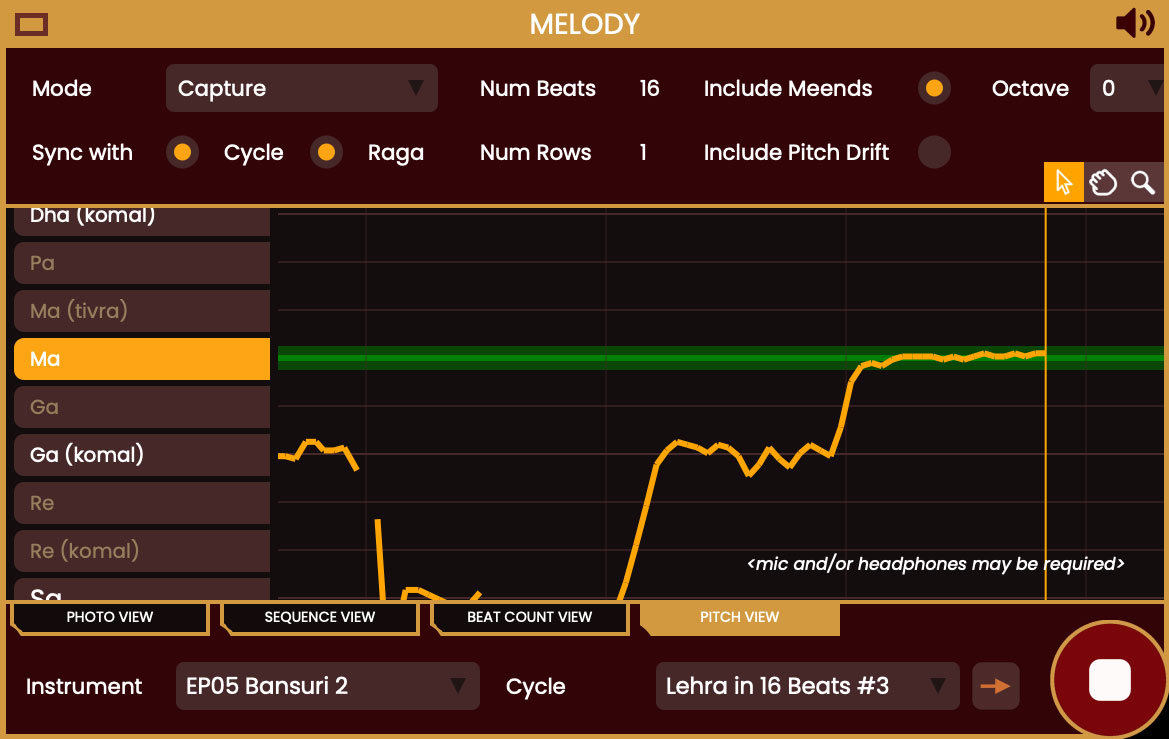
You can then select the PITCH tab in the MELODY pane, where all pitch-related functionality is stored.
The MODE drop-down gives you various options that are explained here. Now you also have a last option called CAPTURE. Select that and you should be in CAPTURE mode.
You'll see a few controls are available in this mode:
Sync with Cycle: when this option is selected, the app will try to fit the recorded melody within the selected rhythmic cycle. If unselected, the recording will spread over the corresponding number of beats it lasts.
Sync with Raga: when this
option is selected, the recording will be mapped to only the notes of
the selected raga. If unchecked, all notes will be available for the
melody.
Num Beats / Num Rows: these
fields will appear when "Sync with Cycle" is selected. By default they
will be set to the number of beats of the currently selected cycle and
to just 1 row. But you can change these values if you want something
more specific, like 2 rows.
Include Meends: this option
will appear for instruments that allow pitch modulation. Selecting it
will automatically create slides between notes (Meends). Otherwise each
note will play on its own.
Include Pitch Drift: this also appear for instruments allowing pitch modulation. When selected, it records your exact pitch curve over the notes you sing. Unless you are very confident with your pitch and want to use specific inflections like slight gammaks, it's better to keep this unchecked.
Octave: this control lets you transpose the generated sequence by a an octave or two, in case you find the result it too low or too high.
Once done, start the tanpura (possibly also swarmandal) and rhythmic cycle for accompaniment. As the rhythmic cycle is about to reach Sam (first beat), press Play on Melody pane, then wait for the Sam and start singing. Press Stop when the melody ends.
The Melody pane should then turn into Sequence view, where you
should see your recorded melody in Bhatkhande notation, which you can
play at any pitch and tempo. Simple as that!
You can do some fine-tuning of your sequence by clicking on the arrow
button next to the sequence name; this will open it in its base in
Compose pane. There you can customize your sequence the way you want, rename it, move it to a different folder, etc...
If you own iShala (Pro Edition), you can also import there any melody
created for Harmonium (iShala's melodic instrument). Right-click on the sequence, select Push to Cloud option, enter some info about the melody, then confirm to upload the item to the cloud, where you can then retrieve it in iShala using the Pull Items from Cloud option. Here is a video explaining the process.